Configure direct integration with Google Calendar for travel bookings
Spotnana allows you to configure the system to automatically add placeholders to your Google Calendar for any bookings you make on the platform. This allows your travelers to easily see upcoming, current and past travel bookings directly in their Google calendar automatically without having to import an ICS (Calendar) file.
If you do not enable this feature, Spotnana will still continue to attach ICS files to all itinerary emails. Travelers can then import those .ics files to synchronize the related bookings with their calendar. However, any changes to the travel bookings will generate fresh ICS files that will need to be re-imported.
Enable automatic synchronization with Google Calendar
To enable automatic synchronization of Spotnana bookings with Google calendar for all travelers in your organization, complete the following steps:
Request that your Microsoft Entra administrator (in your IT department) authorizes the Spotnana Outlook Integration app. For them to do this, you must share the Outlook calendar integration link with the administrator. To do that:
Login to the Online Booking Tool (OBT).
Select Company from the Program menu.
Then select Integrations from the Configuration menu on the left. The Integrations page will be displayed.
Select the Calendar tab.
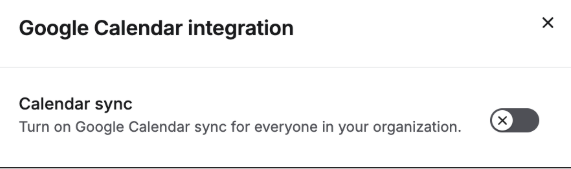
Click Connect in the Google calendar integration row. The Google calendar integration dialog will be displayed.
Then enable the Calendar sync toggle. This will enable the Google calendar integration option for all users in your company.
Once connected, the Connect Google calendar option will appear on the Spotnana home page for all travelers within your company. Please instruct your travelers to enable this option.
 Note: If a traveler accidentally dismisses this prompt, they can still activate the feature by accessing their OBT Profile page (My Profile option in the menu under the icon with their name) and selecting Your connected apps from the menu on the left hand. Then, they would select Connect Google calendar from the Google tile.
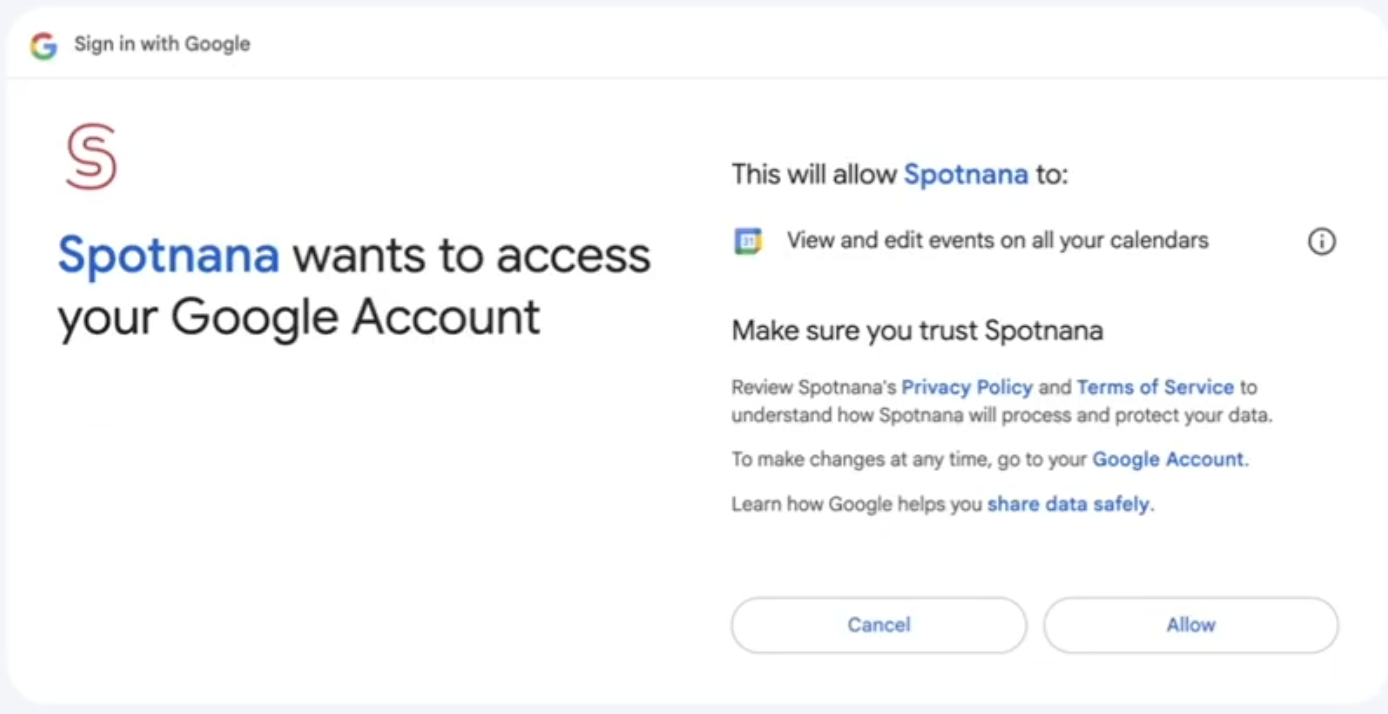
 Clicking this will prompt the user to log into their Google account and request permission to view and edit events on all their Google calendars. The user should click Allow to give Spotnana permission to view and edit their Google Calendar events.
Once this is done (for all users), the setup is complete and all future bookings will automatically sync and stay up to date in their calendars.
Once a traveler connects their Google Calendar to Spotnana, we store a secure authorization token. This allows our platform to keep the traveler’s bookings in sync with their calendar without requiring repeated logins. For security purposes, Google authorization tokens may become invalid after extended periods of inactivity. To ensure reliable synchronization, Spotnana applies an internal inactivity threshold (currently 85 days) to proactively detect stale connections and prompt the traveler to reconnect when needed. If this occurs, the traveler will be prompted (from the Spotnana homepage) to reconnect their Google Calendar to Spotnana. The traveler can re-authorize the token by clicking Connect Google calendar. Until the connection is reestablished, Spotnana will automatically revert to attaching an ICS file to trip itinerary emails so that bookings can still be added to the traveler’s calendar manually.
Additional information about the permissions and access being enabled
Spotnana’s Google Calendar integration uses a verified OAuth 2.0 client (a secure authorization setup registered with Google that governs the data Spotnana can request and how users grant access). This client is configured in our Google Cloud account in accordance with Google’s required standards for third-party access to user data.
This OAuth setup defines the specific permissions Spotnana requests when a user connects their calendar, including:
The ability to view your email address. The scope used to identify the user’s Google account and associate it with their Spotnana profile is userinfo.email.
The ability to manage calendar events. The scope used to automatically create, update, or delete calendar events on the user’s Google Calendar is calendar.events.
During the enablement process, users are presented with Google’s standard OAuth consent screen and must explicitly approve these permissions before Spotnana is granted access. This integration has been reviewed and approved by Google through their OAuth app verification process, ensuring all access is limited and secure.
Was this article helpful?
That’s Great!
Thank you for your feedback
Sorry! We couldn't be helpful
Thank you for your feedback
Feedback sent
We appreciate your effort and will try to fix the article