User roles and descriptions in detail
This page provides greater detail on each role. For each role, we describe the following:
what the assignee (the user with that role) can do
The home page they will be directed to when logging in
how scope changes the role’s behavior
“Read Access Only” variants of a role provide view only access to the same information and pages as the full access variant. However, the “Read Access Only” variant can’t edit any values or click on any function buttons that would change information. This can be a useful role to assign to members of the Finance, IT, or Account Support teams since these users need visibility into settings but should not be allowed to edit them.TABLE OF CONTENTS
Trip Administrator
What it does
Allows users with this role to create, view, and manage trips and bookings for the travelers for which they have been scoped. This role is key to the workflows used by arrangers and event coordinators.
Every traveller automatically has the Trip Administrator and User Profile Administrator roles, but scoped to only themselves. That is the most basic permission and is granted automatically by the platform (and therefore, not something you assign through user groups). However, you can assign the Trip Administrator role to a user with a broader scope when you want that user to manage trips for other people.
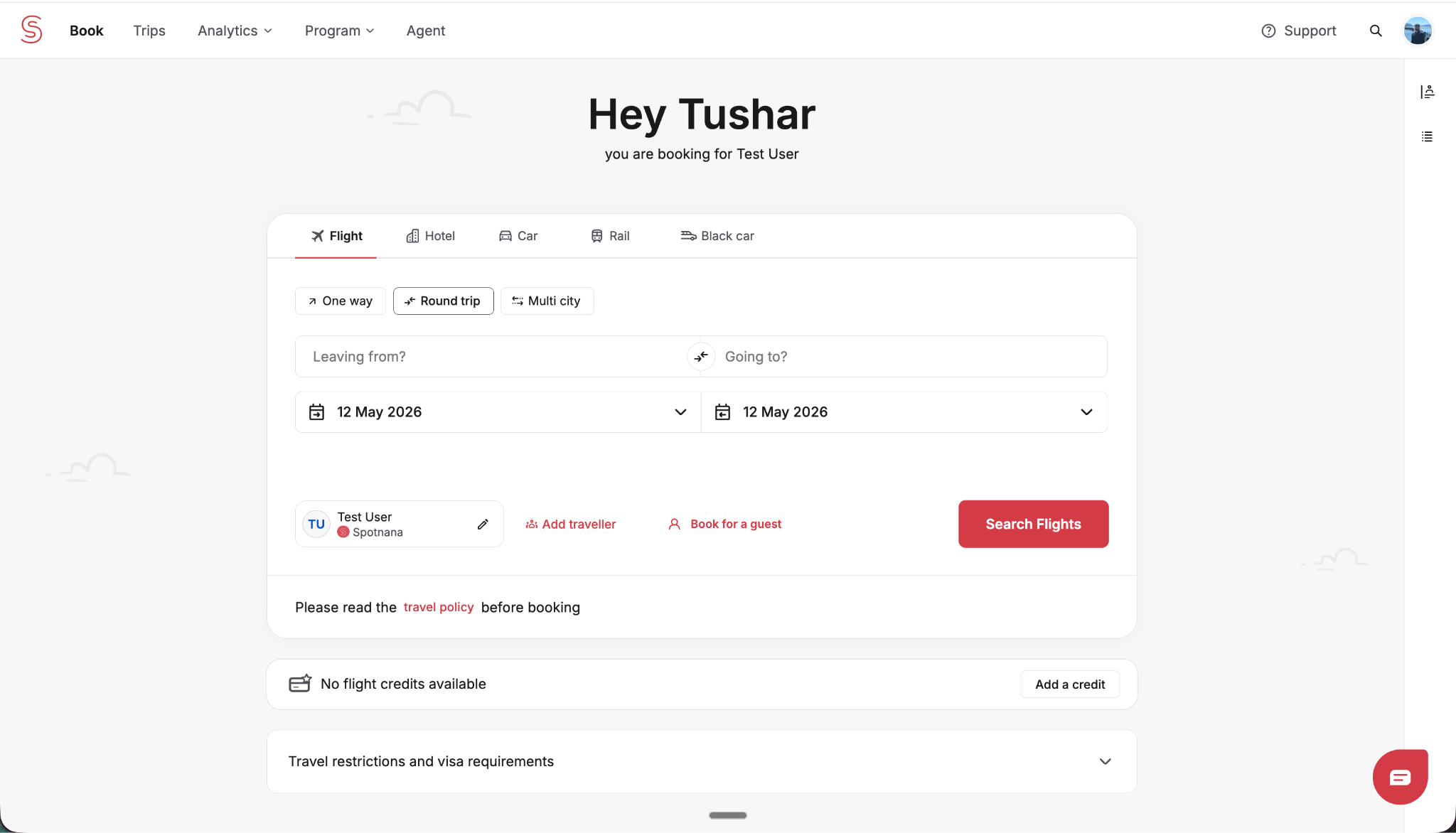
The Trip Administrator role provides the user with the ability to book for other travellers (from the home page). It also allows the user to access the Trips dashboard (the ability to view the trips of those travelers for whom you are arranging travel or whose profiles you have access to).
How scope setting changes behavior
How you set the scope for this role will change what users with the role can do. Below we describe how each scope option affects the role.
- Organization: The assignee can manage trips for any traveler in that organization (similar to the Company Arranger role that was used prior to RBAC).
- Contracting TMC / Booking TMC: The assignee can manage trips across every organization within the TMC. This scope can be used for TMC agents who arrange travel across many client accounts.
- Trip Templates (within an organization): The assignee can only manage trips associated with the specific trip templates that are listed. They cannot see or create standard (non-template) trips, and they cannot see trips on templates outside their scope. This scope can be used for a Specialty Desk Coordinator.
- Stealth (paired with): The assignee can additionally manage trips for the designated stealth travelers.
User Profile Administrator
What it does
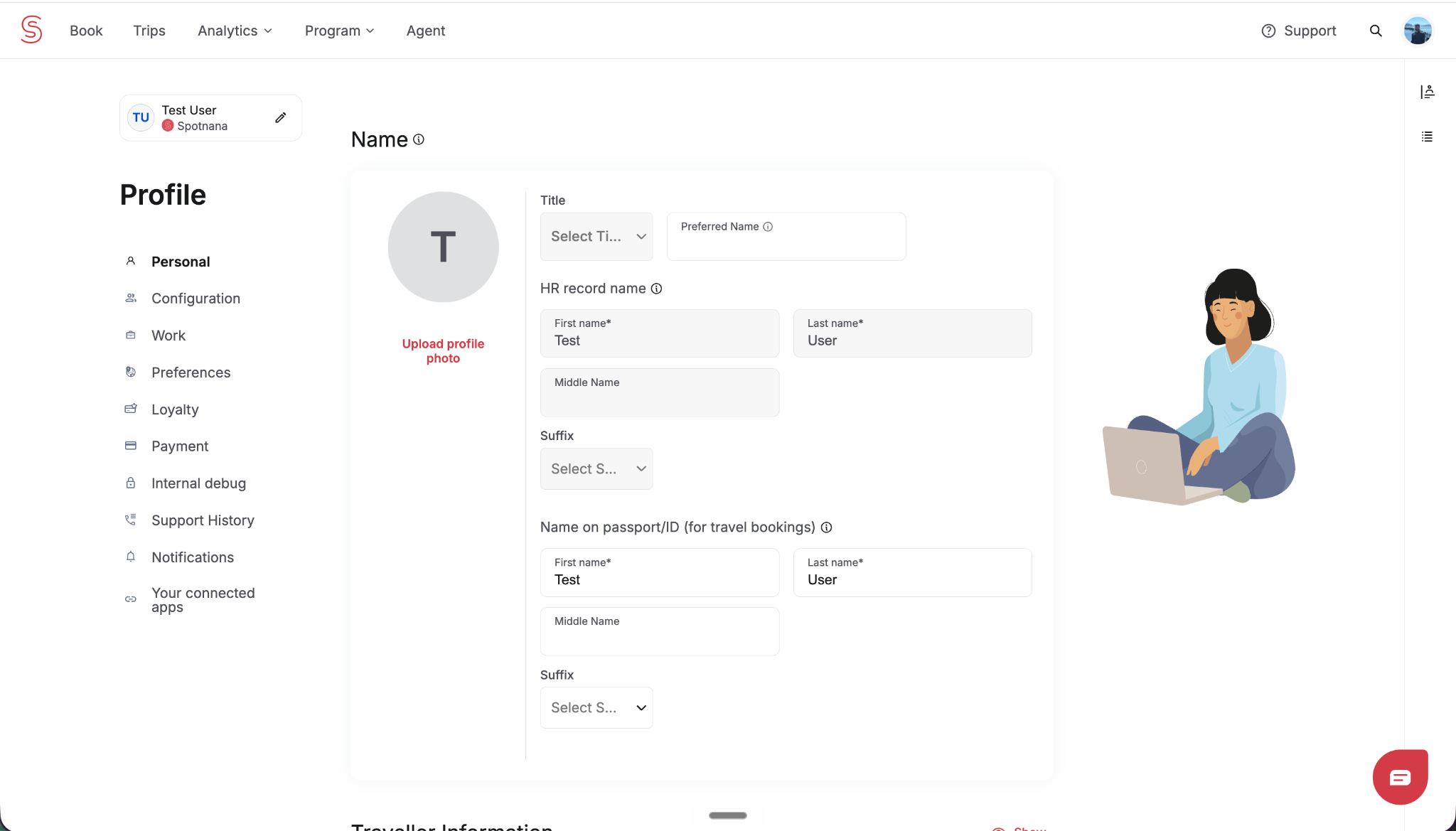
Allows users with this role to view and edit personal profile information for the travelers for which they have been scoped. This is the stricter (less broadly defined) of the two profile-related roles (the other is User Management Administrator). It permits the user to edit profile data, but not create or delete user profiles.
An example of a traveler’s Profile page with profile fields that are editable. This page can be fully accessed by users with the User Profile Administrator role. In fact, the user profile administrator role also gets the ability to search for profiles.
How scope setting changes behavior:
How you set the scope for this role will change what users with the role can do. Below we describe how each scope option affects the role.
- Organization: The assignee can view and edit profiles for any users in that organization.
- Contracting TMC / Booking TMC: The assignee can view and edit profiles for any users in every organization within the TMC.
- Stealth (paired with): The assignee can additionally view and edit profiles for designated stealth travelers.
User Management Administrator
What it does
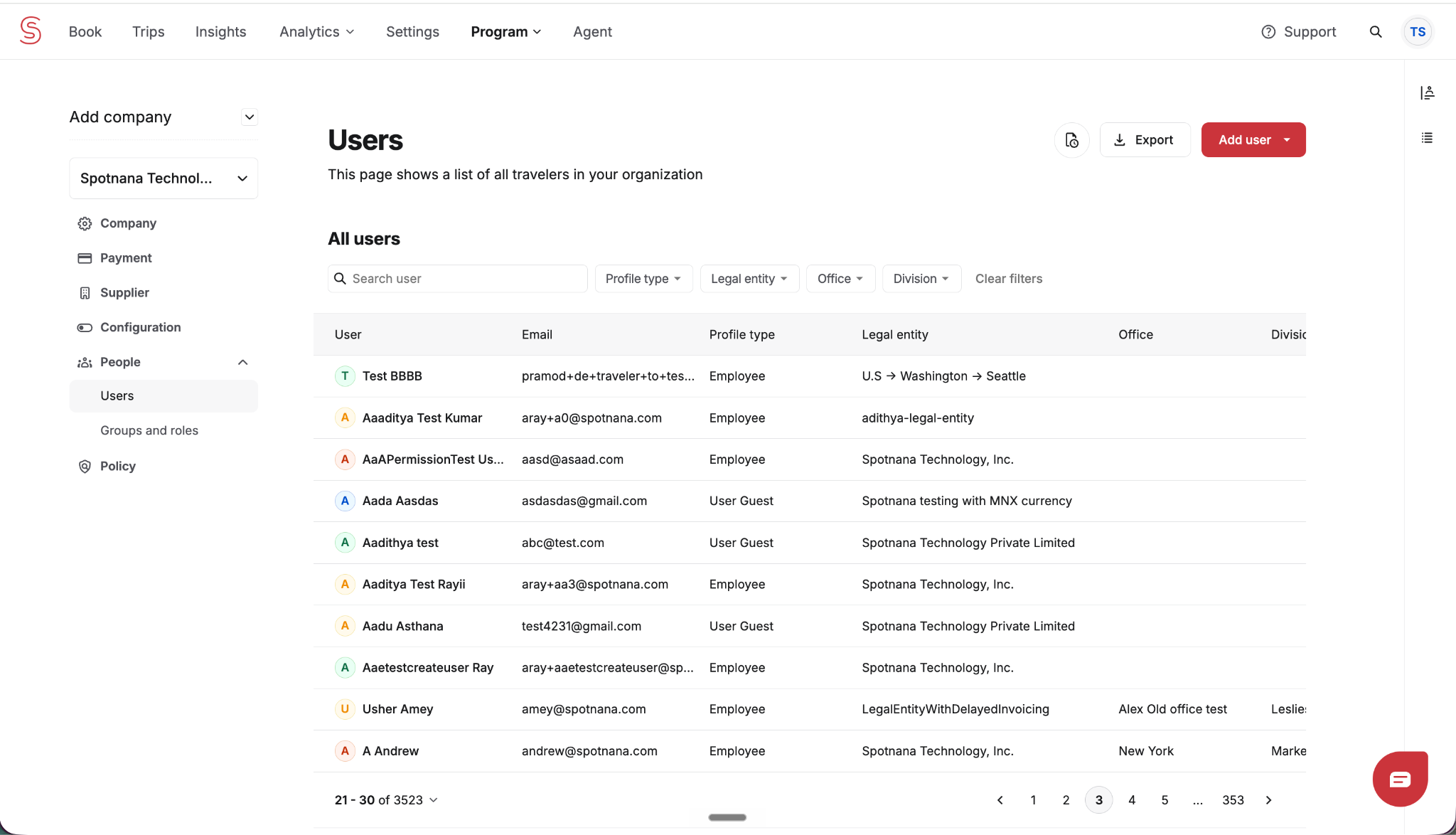
Allows users with this role to fully manage user profiles for the travelers for which they have been scoped. This includes the ability to add new users, edit profiles, edit a user’s business information (organization, department, cost center, legal entity, and other employment-related fields), deactivate or remove users, and manage user-level configurations. This role includes everything User Profile Administrator can do and view, but adds the ability to create and deactivate users as well as the ability to edit business information.
An example of the Users page which gives you the ability to add/remove users and change their profile information.
How scope setting changes behavior:
How you set the scope for this role will change what users with the role can do. Below we describe how each scope option affects the role.
- Organization: The assignee can manage all user accounts for that organization.
- Contracting TMC / Booking TMC: The assignee can manage all user accounts for all organizations within the TMC.
- Stealth (paired with): The assignee can add, edit, and deactivate accounts for stealth travelers.
Event Management Administrator
What it does
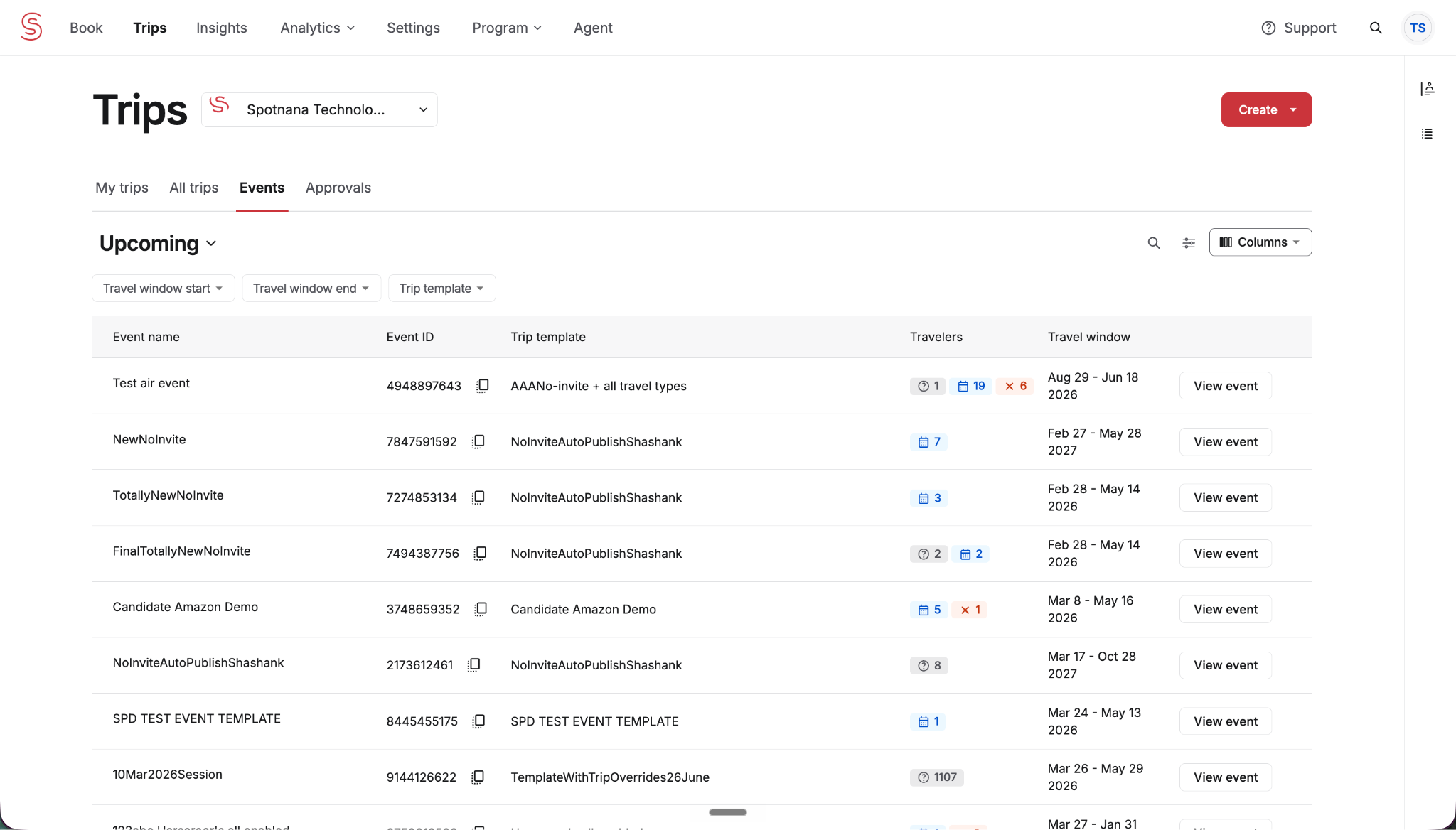
Allows users with this role to create events, modify event’s settings, configurations, attendees, and more.
An example of the Events page showing the list of events. Clicking into an event allows you to modify its settings and set and manage attendees.
How scope setting changes behavior:
How you set the scope for this role will change what users with the role can do. Below we describe how each scope option affects the role.
- Organization: The assignee can manage all events for that organization.
- Contracting TMC / Booking TMC: The assignee can manage events across every organization within the TMC.
- Trip Templates (organization-level only): The assignee can only manage events associated with the specific event templates that are listed (for a specific organization). Other events within that organization are not visible to them.
Reporting Administrator
What it does
Allows users with this role to access and manage reports for the designated companies. This includes custom reports, filters, metrics, and schedules.
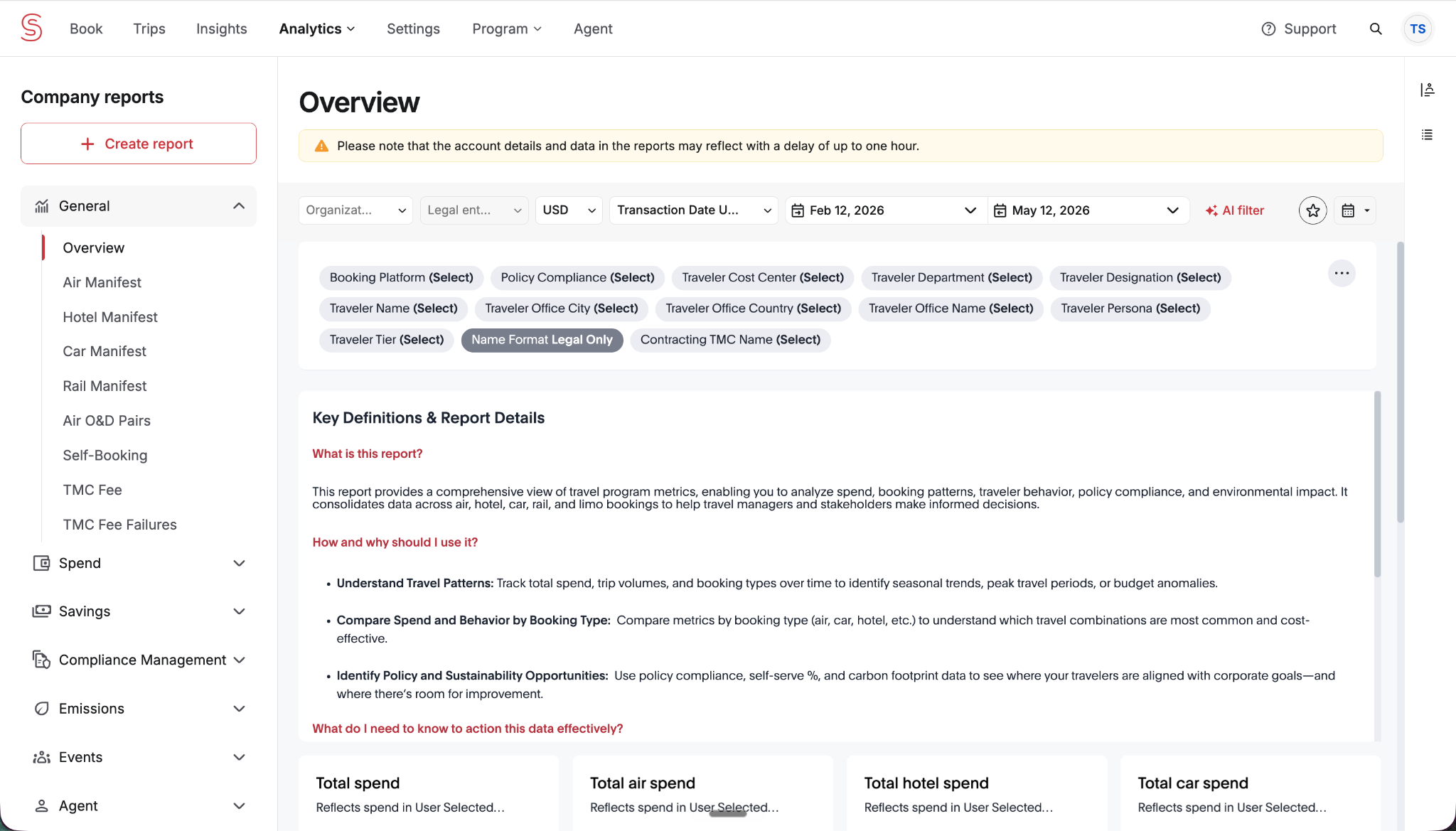
An example of the Analytics / Reports landing page that a Reporting Administrator has access to.
How scope setting changes behavior:
How you set the scope for this role will change what users with the role can do. Below we describe how each scope option affects the role.
- Organization: The assignee can generate and manage reports for that organization only.
- Contracting TMC / Booking TMC: The assignee can generate and manage reports for every organization in the TMC. The company selection menu on the Reports page will only show a list of those companies that are in scope for the TMC.
- Stealth (paired with): The reports the assignee sees include stealth traveler data. Without Stealth in scope, stealth data (the travel associated with stealth travelers) is automatically excluded from every report.
Company Settings Administrator
What it does
Allows users full edit access to organization settings. This includes policies, legal entities, offices, departments, cost centers, users, central payment methods, supplier programs, and supplier preferences.
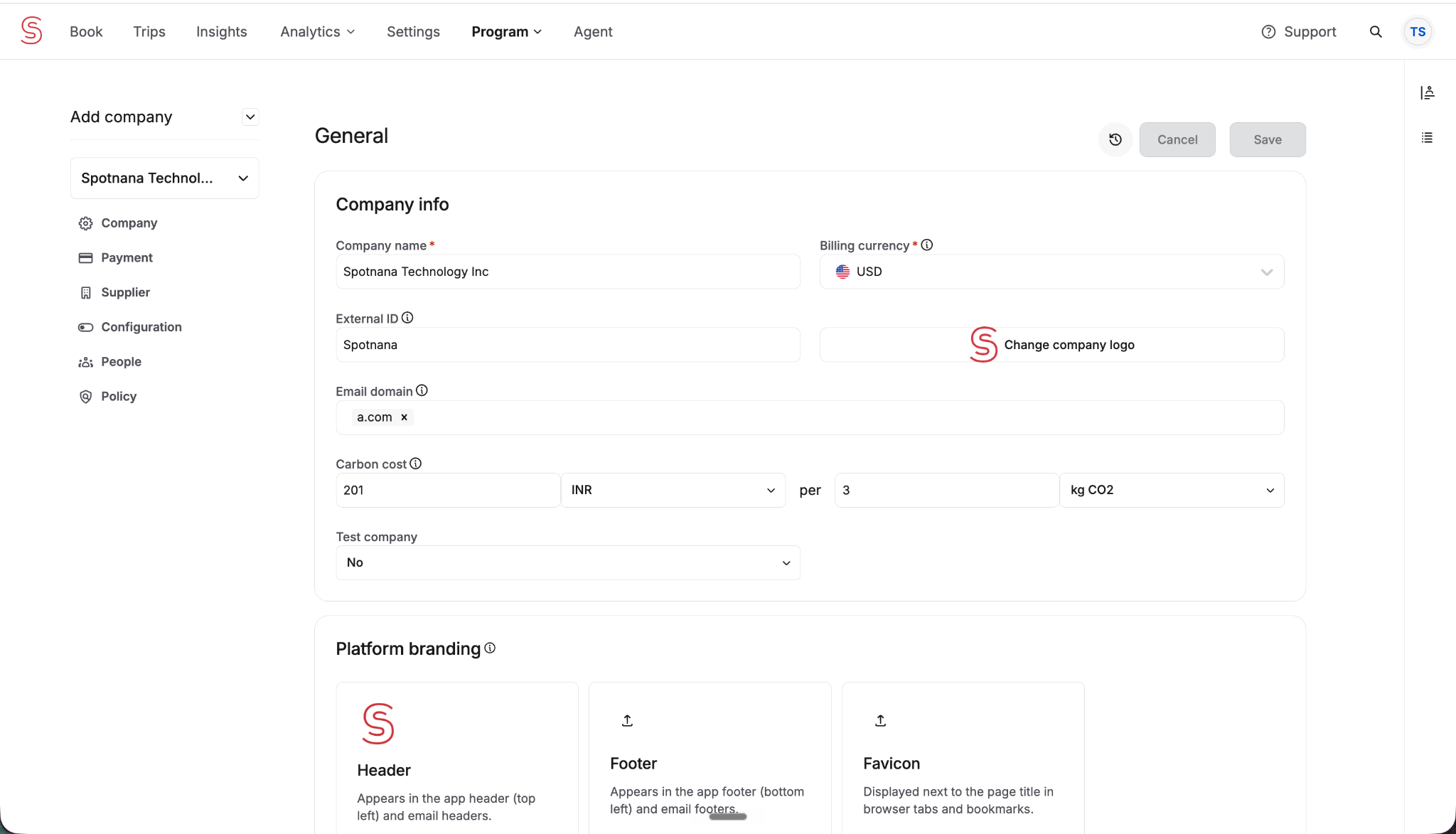
An example of the Company settings page with the different setting categories listed on the left.
How scope setting changes behavior:
How you set the scope for this role will change what users with the role can do. Below we describe how each scope option affects the role.
- Organization: The assignee can manage settings for that specific organization.
- Contracting TMC / Booking TMC: The assignee can manage settings for every organization within the TMC.
TMC Settings Administrator
What it does
Allows users to manage TMC-level settings. This includes general and L1 remarks, traveler messaging, PCC configurations, and supplier configurations.
This role is only available to TMCs, it does not appear in the Company view of roles and permissions.
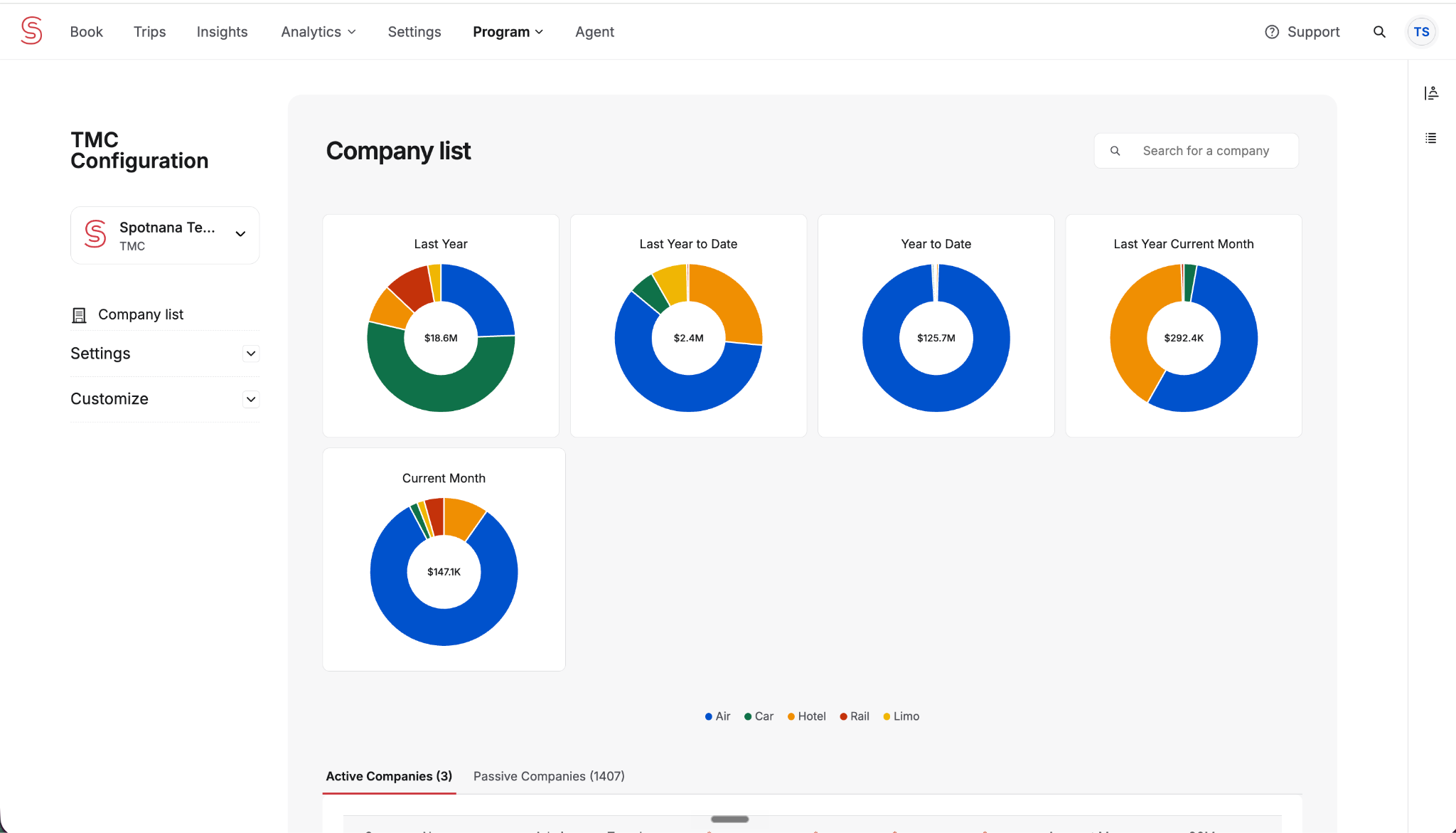
An example of the TMC Settings page (similar to the Company settings page, but for TMC level settings).
How scope setting changes behavior:
- Contracting TMC: Manage settings for this TMC as the contracting party (the user is able to edit all settings for all TMCs within the contracting TMC).
- Booking TMC: Manage settings for this TMC as the booking party (the user is able to edit all settings for all TMCs within the booking TMC).
Agent
What it does
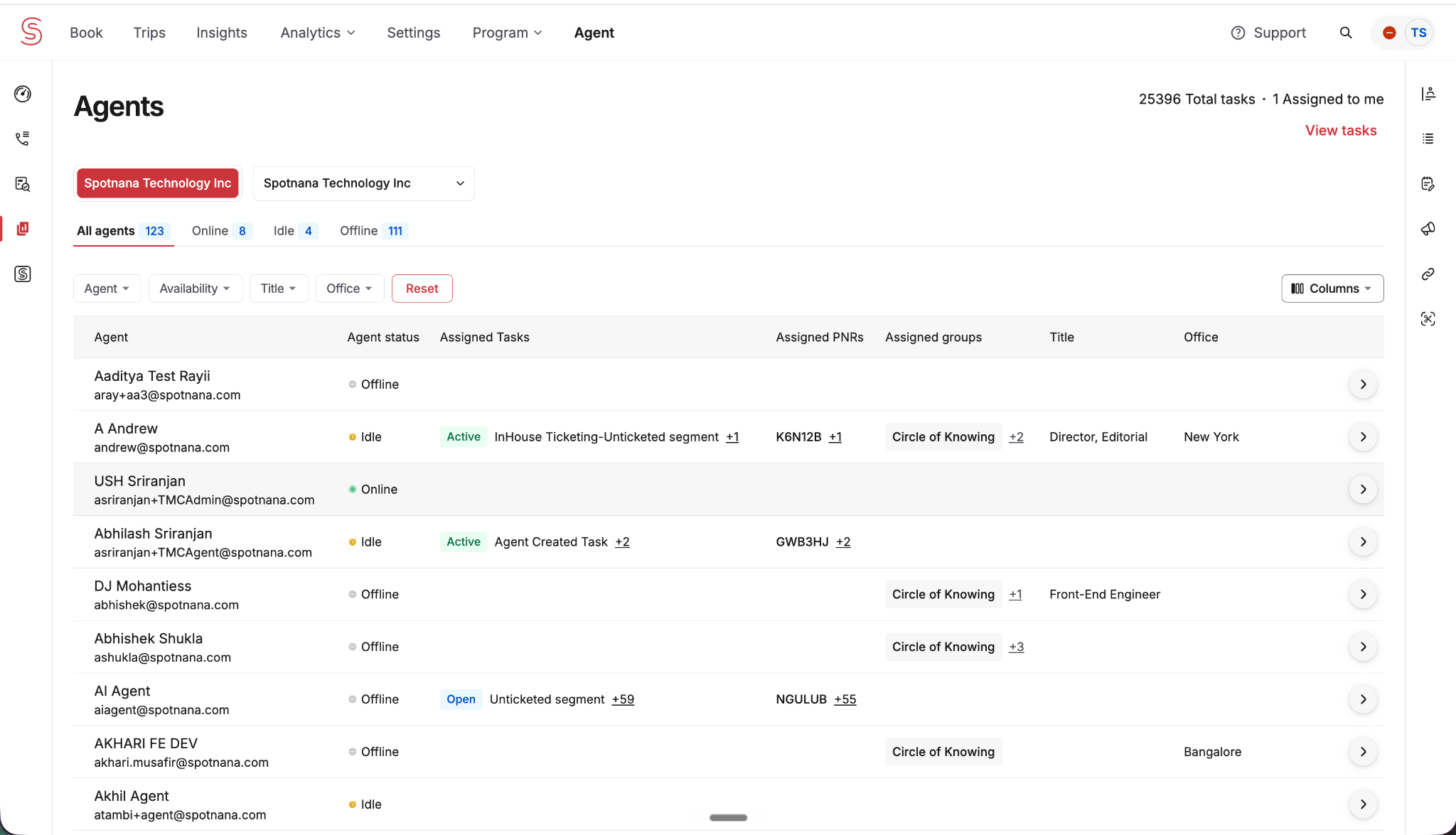
Allows users to access and take actions on the agent dashboard, queue tasks, and traveler support tooling. Being assigned to this role allows the user to function as an agent. This role is only available at the TMC-level.
How scope changes behavior:
How you set the scope for this role will change what users with the role can do. Below we describe how each scope option affects the role.
- Contracting TMC / Booking TMC: The agent user is able to see queues, tasks, and traveler support requests for every organization within the TMC.
- Organization: The agent user is able to see only that organization’s queue, tasks, and travel support requests. The scope can be used for agents dedicated to a single client (when an agent should only service a single client account).
- Stealth (paired with): The agent can service tasks for stealth travelers.
To allow an agent to be dedicated to and service just a specific list of organizations, you will need a combination of three roles
An agent at a TMC who only services a specific set of client organizations needs three roles working together in a single user group (due to role dependencies):

-- TMC Settings Administrator (Read Access Only): Scoped to the TMC itself. This is the main prerequisite for the Agent role to function.
-- Agent: Scoped to the specific client organizations the agent services.
-- Company Settings Administrator (Read Access Only): Scoped to the same set of client organizations as the Agent role. This is what allows the agent dashboard to function correctly for the companies the agent supports.

Without all three roles, the user group will not function as a complete agent setup (and the agent will not be able to properly perform their duties). The platform aggregates these 3 roles for you in the standard TMC Agents group. As a result, you will only need to assemble these roles into a new group if you need to build a custom group that is dedicated to a different group of organizations.
Access Management Administrator
What it does
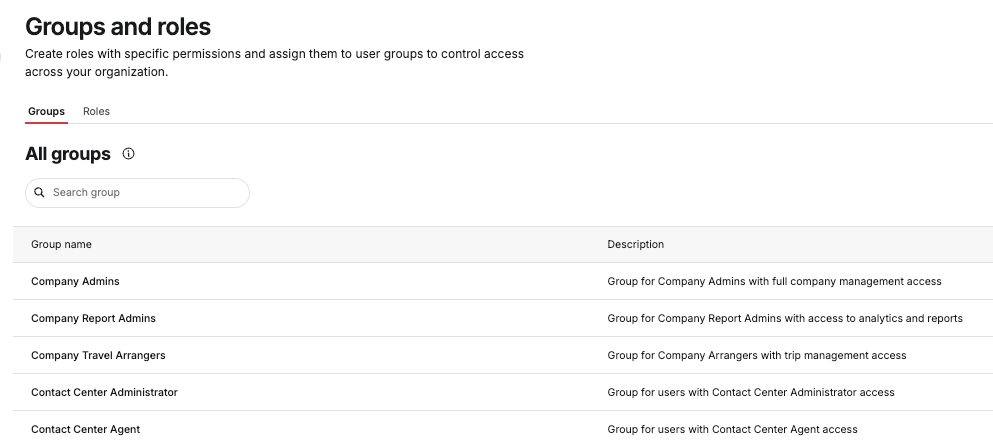
Allows users access to the control panel for RBAC itself. The user will have the ability to manage groups, roles, scope assignments, and group membership.
An example of the Groups and roles page (Groups tab) that Access Management Administrator unlocks.
How scope setting changes behavior:
How you set the scope for this role will change what users with the role can do. Below we describe how each scope option affects the role.
- Organization: The assignee can manage groups and role assignments within that organization.
- Contracting TMC / Booking TMC: The assignee can manage groups and role assignments for every organization in the TMC.
- Stealth (paired with): The assignee can manage access for stealth users. This is needed when an administrator must grant other users access management over stealth travelers and actions.
Was this article helpful?
That’s Great!
Thank you for your feedback
Sorry! We couldn't be helpful
Thank you for your feedback
Feedback sent
We appreciate your effort and will try to fix the article